On a recent MOOC, ‘Our Green City’ (for which I was the lead technical developer) I was asked to include approximately fifty short videos in the learning materials. I wanted to make the most accessible user experience possible so I used a combination of Dragon Dictate, YouTube and Vimeo to make subtitles. Subtitling videos makes them more accessible to users with hearing impairments and to non-native speakers of English (many of whom find reading easier than listening, particularly when speakers have a strong regional accent as in this case).
I used Dragon Dictate software to transcribe the audio from videos which did not have an existing transcript (i.e. unscripted interviews) into text. I tidied up the transcript by fixing wrongly interpreted words and by adding punctuation.
I then uploaded a low resolution copy (for speed) of the video and the transcript text it went with into YouTube. Unlike Vimeo, YouTube has a very efficient means of automatically creating a downloadable .srt subtitle file, which is the only reason I used YouTube in this process.
Next I uploaded a high resolution version of the video into Vimeo along with the corresponding .srt file to create the subtitles. Lastly, I copied the embed code available from Vimeo and pasted it into the HTML editor in the appropriate partof the MOOC so that users could see the video inline without needing to visit a different web page.
I used Vimeo because, apart from not including advertising, it allows users to choose between a High Definition and Standard version of the video (thus increasing accessibility for users on low bandwidth Internet connections) and automatically serves mobile users with a version suitable for their device.
In addition to the subtitles I included a downloadable PDF file of the transcript, which makes the video content more accessible to users who cannot easily view streaming video because, for example, of intermittent Internet connection and to learners who prefer reading to viewing video. I wanted to make the videos downloadable too (to increase accessibility further) but was overruled by the project manager on the MOOC.
By providing a number of ways to access the video content, I aimed to make it as accessible as possible to everyone, taking into account disability, the technology learners use, and learner preferences.
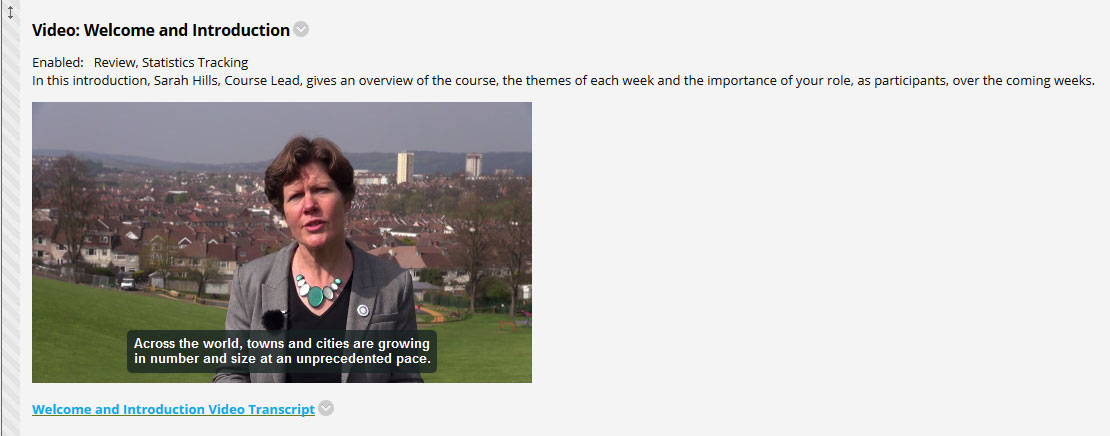
An example of a video from the MOOC is pictured below, showing subtitles and a link to the transcript.